HDMI to USB C: The Complete Guide to High-Performance Display Connectivity
 Admin USA Journalist
Struggling to connect your laptop, gaming console, or media player to a modern USB-C monitor? You need a reliable HDMI to USB C converter. This guide explains everything about this essential adapter technology—what it does, why you need it, and how to choose the right one. Whether for work, gaming, or creative projects, get ready to master display connectivity with confidence.
What Is an HDMI to USB C Converter?
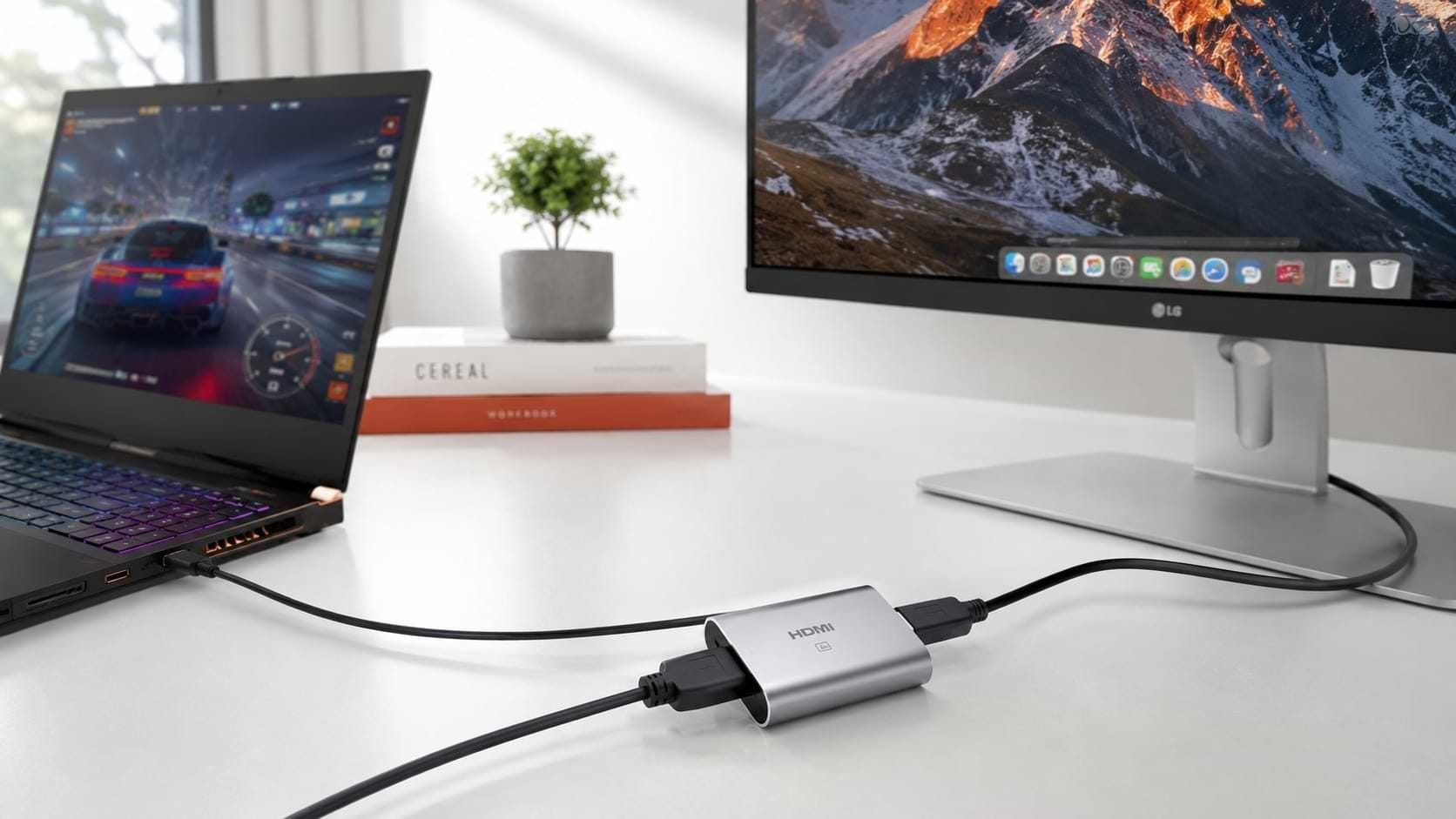
An HDMI to USB C converter is a compact device that transforms the signal from an HDMI output into a format a USB-C monitor or display can understand. This technology lets you connect traditional HDMI sources—like gaming consoles, Blu-ray players, and older laptops—to the latest USB-C displays, projectors, and monitors .
The converter works by taking the HDMI signal and converting it into a DisplayPort signal using DisplayPort Alternate Mode. This is the same language modern USB-C ports use for video output . Many people confuse this with a USB-C to HDMI adapter, which does the opposite job. An HDMI to USB C adapter sends video from an HDMI source to a USB-C display, while the reverse connection sends video from a USB-C device to an HDMI screen.
How HDMI to USB C Technology Works
The technology behind HDMI to USB C conversion relies on the USB-C connector’s versatility. The USB-C port is designed to handle multiple protocols—including video—through Alt Mode . When you plug an HDMI to USB-C adapter into your monitor, it communicates with the display using DisplayPort 1.2 protocol, which has sufficient bandwidth to carry high-definition video and audio.
The magic happens in the built-in chipset. Products like the INFOBIT iTrans HC use specific chips to handle the conversion from HDMI 2.0b (which supports up to 18 Gbps) to DisplayPort Alt Mode . This conversion process is instantaneous and requires no software or drivers, making it truly plug-and-play .
Key Benefits of Using an HDMI to USB C Adapter
- Future-Proof Your Devices – Extend the life of your HDMI-only equipment by connecting them to modern USB-C displays.
- Single-Cable Connectivity – USB-C transmits video, audio, and even power through one connection, reducing cable clutter.
- High Video Quality – Advanced adapters support up to 4K resolution at 60 Hz for crystal-clear images .
- Audio Support – Many adapters pass through high-quality audio, supporting formats like 5.1 and 7.1-channel surround sound .
- Enhanced Productivity – Create a streamlined workspace by using USB-C monitors that charge your laptop while displaying content.
Comparison Table: HDMI to USB C Converter Models
Choosing the Right HDMI to USB C Converter
Selecting the ideal HDMI to USB C adapter depends on several key factors. Consider the following aspects carefully before making your purchase decision.
Video Quality Requirements
First, determine the maximum resolution your devices support. For 4K at 60 Hz, choose a converter with HDMI 2.0 compliance and sufficient bandwidth . If you only need 1080p or 4K at 30 Hz, more basic models may suffice .
Compatibility Considerations
Check that your USB-C monitor supports DisplayPort Alt Mode. Without this, the adapter won’t work . Also, verify the adapter’s HDCP compliance—especially important for streaming content and Blu-ray playback .
Power Requirements
Some adapters require external power via a USB cable to maintain stable performance . Others are bus-powered, drawing power directly from the HDMI source or USB connection.
Build Quality and Portability
For frequent travelers, a compact, lightweight design is crucial . Well-built adapters with quality connectors last longer and maintain stable connections .
Common Use Cases for HDMI to USB C
Professional Presentations – Connect laptops or media players to modern USB-C projectors and collaboration displays for seamless presentations . Traveling professionals appreciate the compact design of these adapters .
Gaming Setups – Connect gaming consoles to USB-C monitors for immersive gaming experiences. The low latency and high refresh rates ensure smooth gameplay.
Creative Workstations – Designers and video editors benefit from the high color accuracy and resolution support of USB-C displays. The ability to use HDMI sources with these monitors expands creative flexibility.
Home Entertainment – Connect Blu-ray players, streaming devices, or media centers to USB-C displays or portable projectors . With 7.1-channel audio support, these adapters deliver premium entertainment.
Potential Issues and Troubleshooting
No Signal Detected – First, verify your USB-C display supports DisplayPort Alt Mode. Also check that you’re using the correct HDMI to USB C converter direction—this converter sends signal from HDMI to USB-C, not the reverse .
Resolution Limitations – Your maximum resolution depends on the adapter’s specifications and your device’s capabilities. Check your cable and adapter version for compatibility.
Audio Issues – Ensure your HDMI source outputs audio and that the converter supports the required audio format. Some older converters may support only stereo audio .
HDCP Compatibility – If streaming content doesn’t display, verify your adapter’s HDCP version. HDCP 2.2 compliance is necessary for most current content protection standards .
HDMI Alt Mode vs. HDMI to USB C Adapters
HDMI Alt Mode allows devices with USB-C ports to output native HDMI signals without an adapter . This technology is built into many modern smartphones and laptops. An HDMI to USB-C adapter, however, is for the opposite scenario—sending HDMI signals to USB-C displays.
HDMI Alt Mode – Source device outputs HDMI over USB-C. Requires an HDMI to USB-C cable or passive adapter .
HDMI to USB C Converter – Source device has HDMI output; display has USB-C input. Requires active signal conversion .
Understanding this distinction helps you choose the right solution for your needs.
Industry Standards and Compliance
Look for adapters that comply with these standards for optimal performance:
- HDMI 2.0 or Higher – Supports 4K at 60 Hz and higher bandwidth
- HDCP 2.2 – Ensures compatibility with copy-protected content
- DisplayPort 1.2 Alt Mode – Required for USB-C video functionality
- HDMI CEC – Allows control of connected devices
Products with CE and FCC certifications also offer safety and quality assurance .
Setting Up Your HDMI to USB C Converter
- Check Compatibility – Verify your USB-C monitor supports DisplayPort Alt Mode .
- Connect Power (if required) – Some converters need external power via a USB cable. Plug it in before use .
- Connect HDMI Cable – Connect your HDMI source device (like a laptop or console) to the converter’s HDMI port.
- Connect to USB-C Display – Plug the converter’s USB-C end into your monitor or projector.
- Select Input – On your USB-C display, select the appropriate input source.
- Configure Settings – Adjust display and audio settings on your device as needed.
Frequently Asked Questions
What does an HDMI to USB C converter do?
An HDMI to USB C converter transforms an HDMI signal into a USB-C-compatible signal. This allows traditional HDMI devices to connect to modern USB-C displays, monitors, and projectors. It converts the video and audio signals for seamless display on USB-C screens.
What is the difference between HDMI to USB C and USB C to HDMI?
HDMI to USB C sends signal from an HDMI source to a USB-C display. USB-C to HDMI does the opposite—connecting a USB-C device to an HDMI display. These are different functions requiring different adapters.
Does an HDMI to USB C converter work for gaming?
Yes, quality HDMI to USB C converters support 4K at 60 Hz with low latency . They work well for gaming when using USB-C monitors. Choose a converter with adequate bandwidth and HDCP compliance for the best experience.
What devices require an HDMI to USB C converter?
Devices like gaming consoles, Blu-ray players, and older laptops with HDMI outputs need this converter to connect to USB-C displays. Media players, desktop computers, and any HDMI source device can also use this converter.
What are the benefits of an HDMI to USB C converter?
Benefits include connecting legacy devices to modern USB-C monitors, supporting 4K video quality, passing through high-quality audio, reducing cable clutter, and creating productive workstations. These adapters extend the life of older equipment .
Is an HDMI to USB C adapter plug-and-play?
Yes, most HDMI to USB C converters require no software or drivers. Simply plug in the adapter and it works immediately . However, ensure your USB-C display supports DisplayPort Alt Mode for compatibility .
Conclusion
An HDMI to USB C converter is your solution for bridging the gap between traditional HDMI devices and modern USB-C displays. Whether you’re setting up a professional presentation space, connecting your gaming console, or expanding your creative workstation, the right adapter ensures seamless, high-quality connectivity. Remember to check your display’s DisplayPort Alt Mode support and choose a converter with the resolution and audio features you need.
Recommended For You